New article
Recently updated
Updating the user expiration date

Who is this article for?
System administrators and user management personnel responsible for maintaining user accounts in the Ideagen Supplier Management system.
No special access or permissions at required
This tutorial guides you through updating a user's expiration date within the Ideagen Supplier Management system.
You will learn how to locate the user and modify their expiration settings to ensure accurate account management.
1. Updating the user expiration date
- Access the Ideagen Supplier Management system.
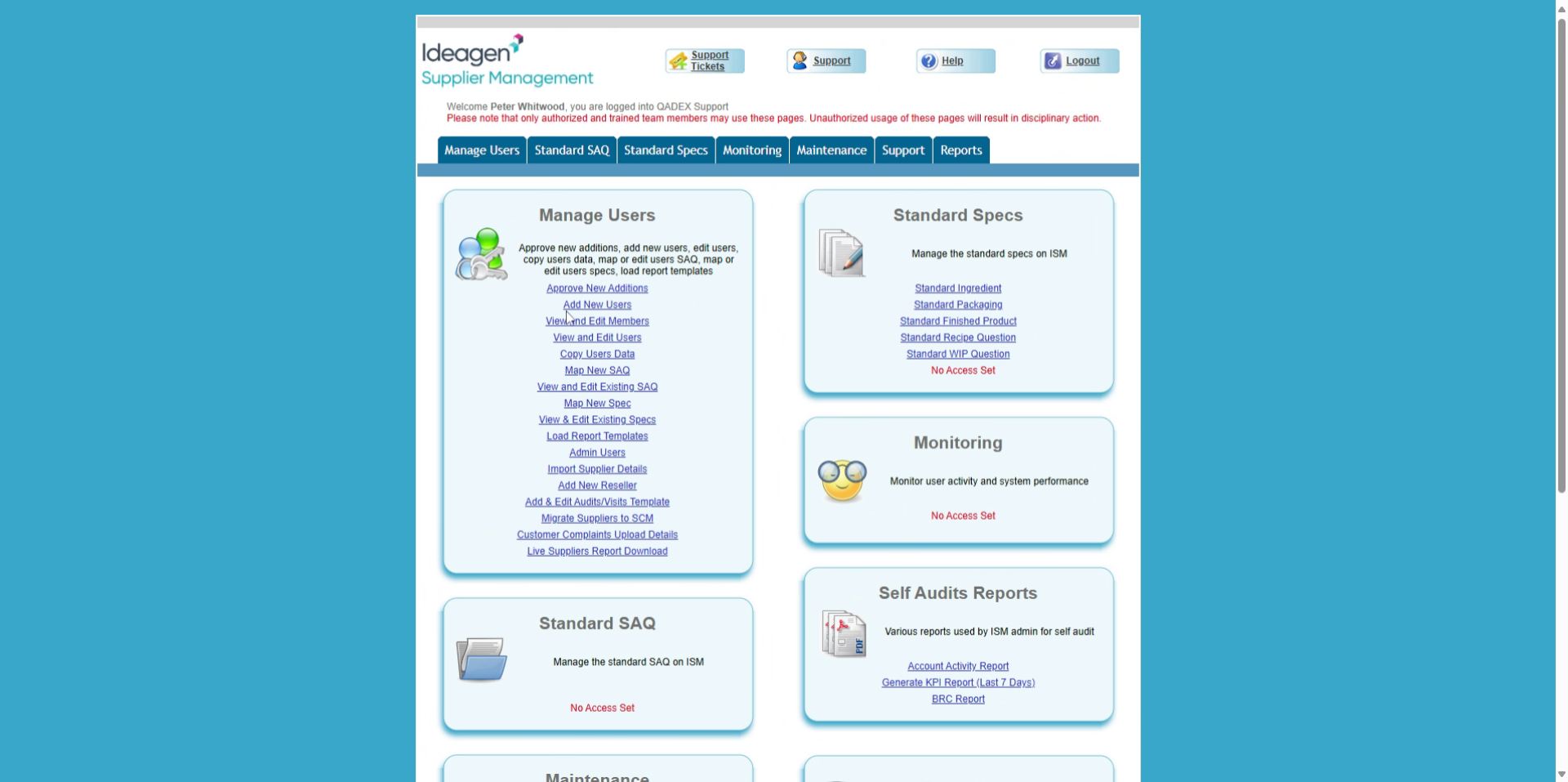
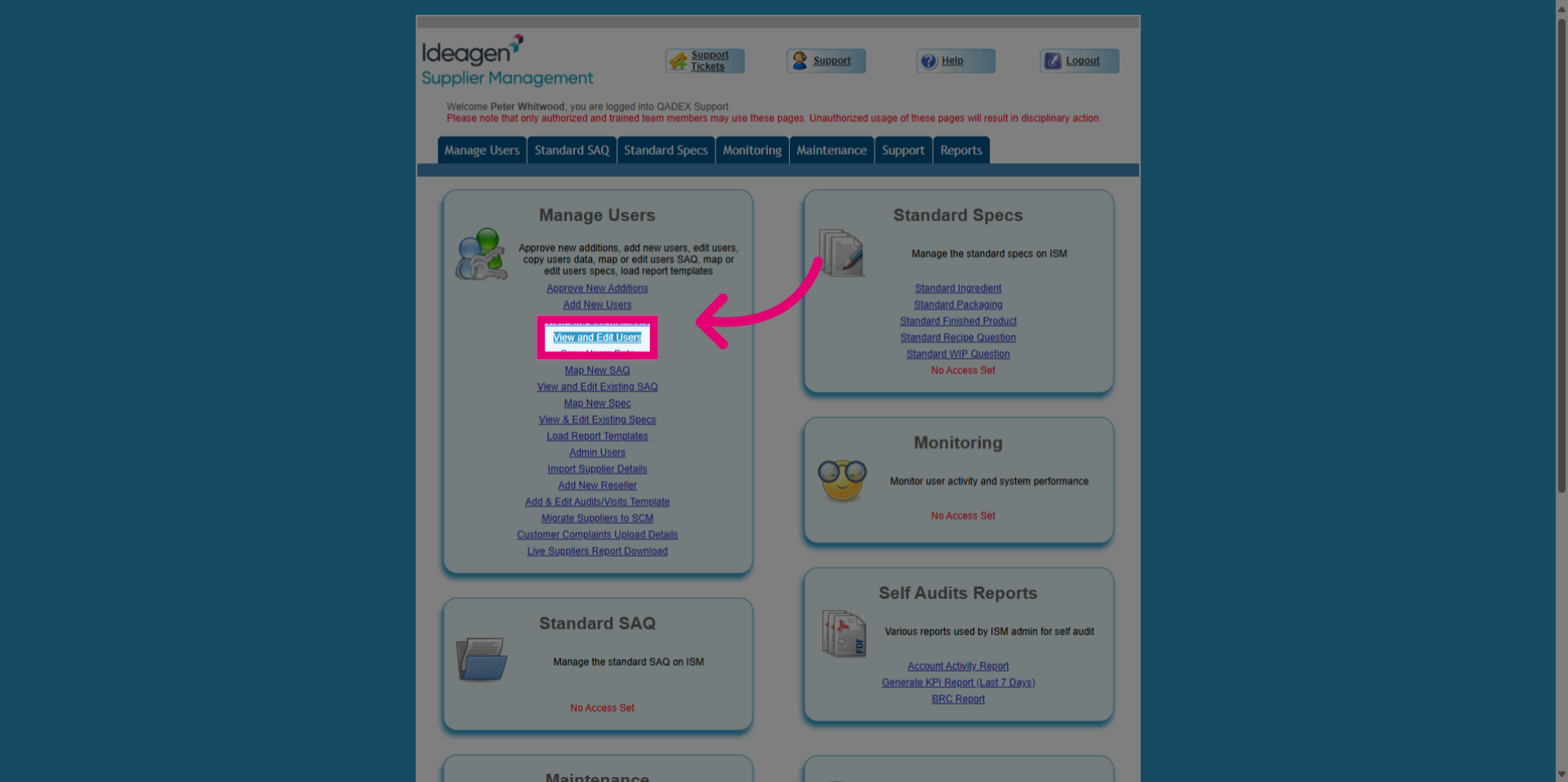
- Click the View and Edit Users option to access the user management area.
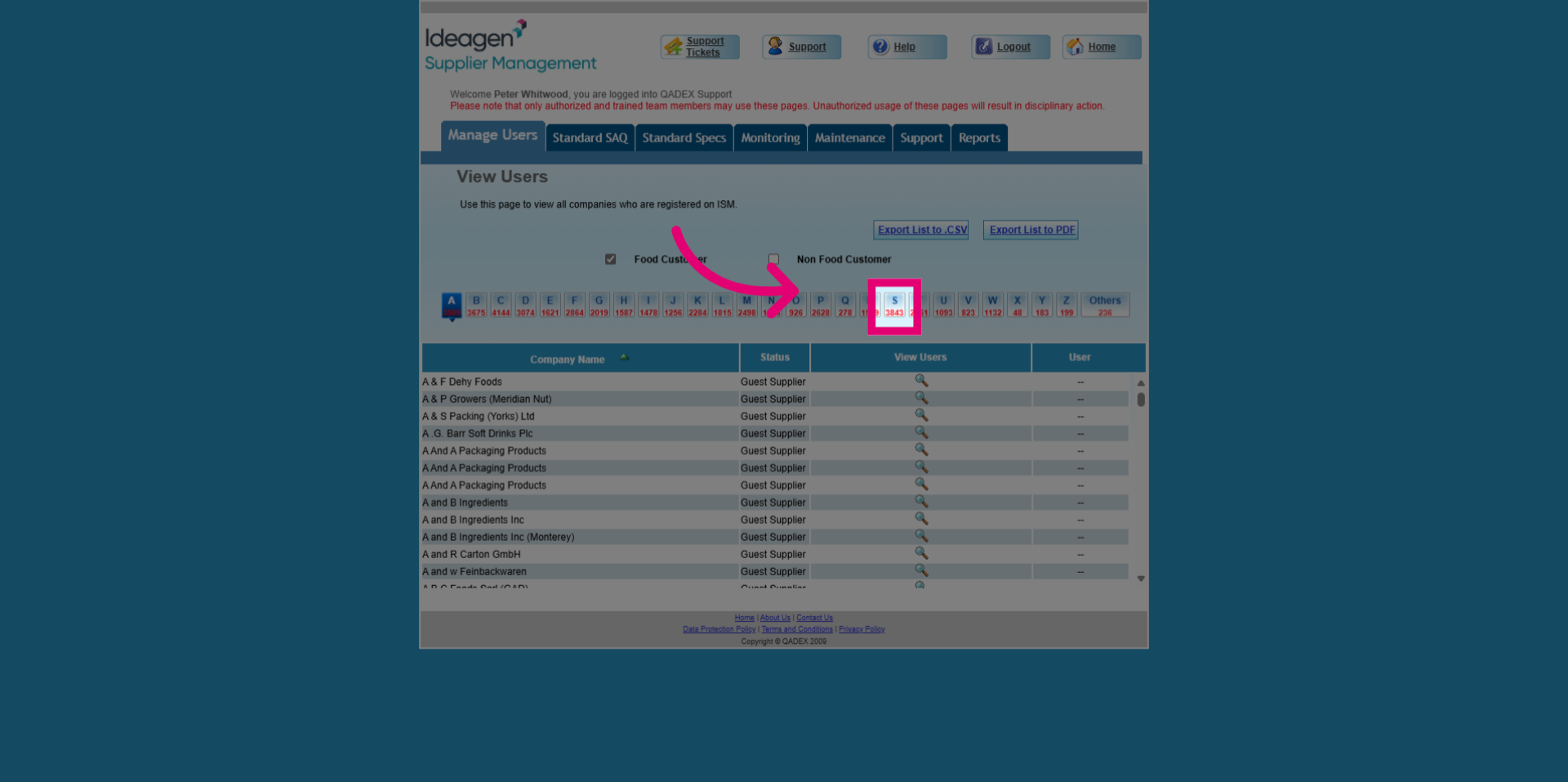
- Click the relevant letter along the top of the screen to find the correct customer to open their profile details.
2. Modify the User Expiration Date
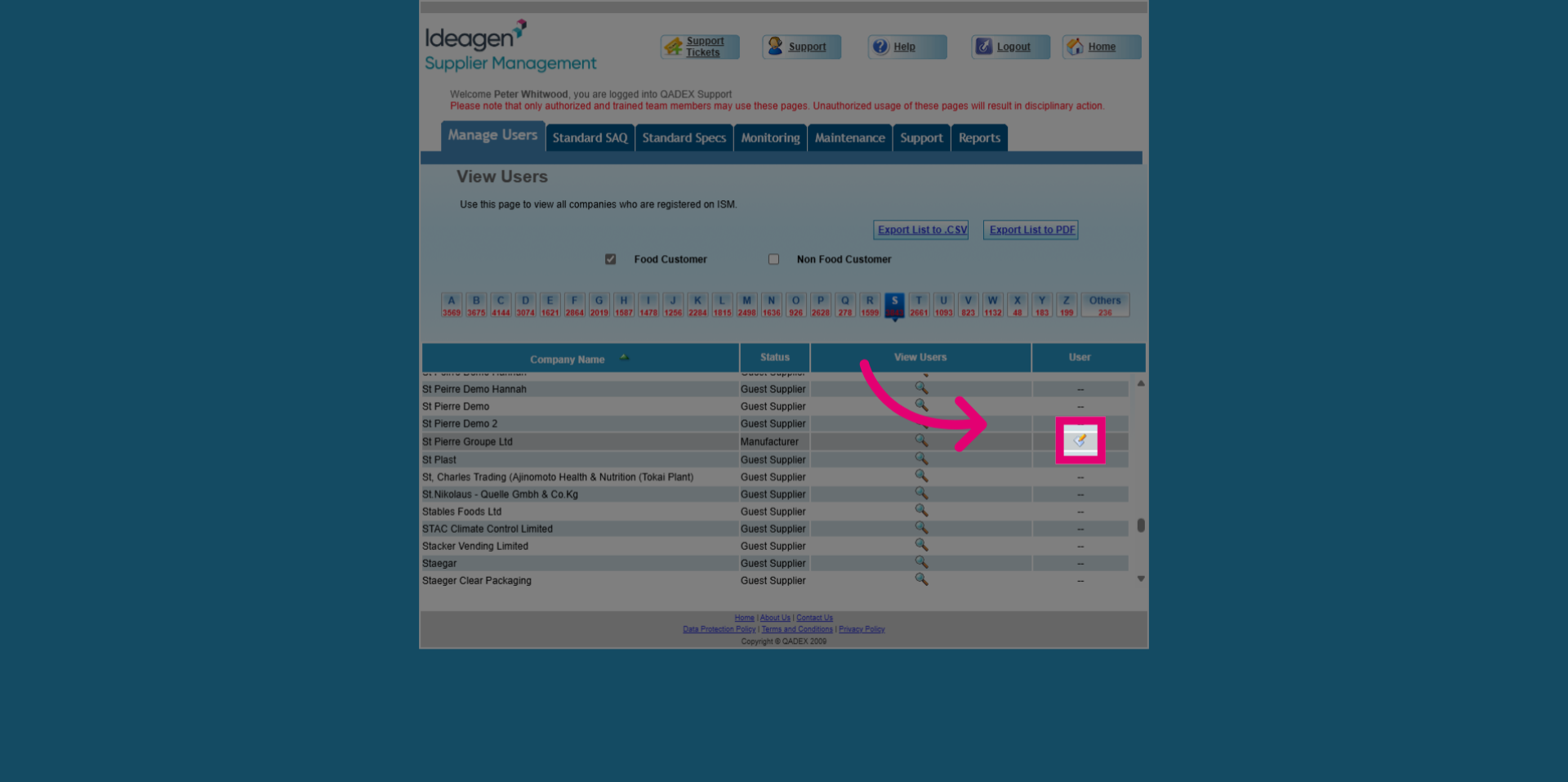
- Click the User button to begin editing the user's expiration date.
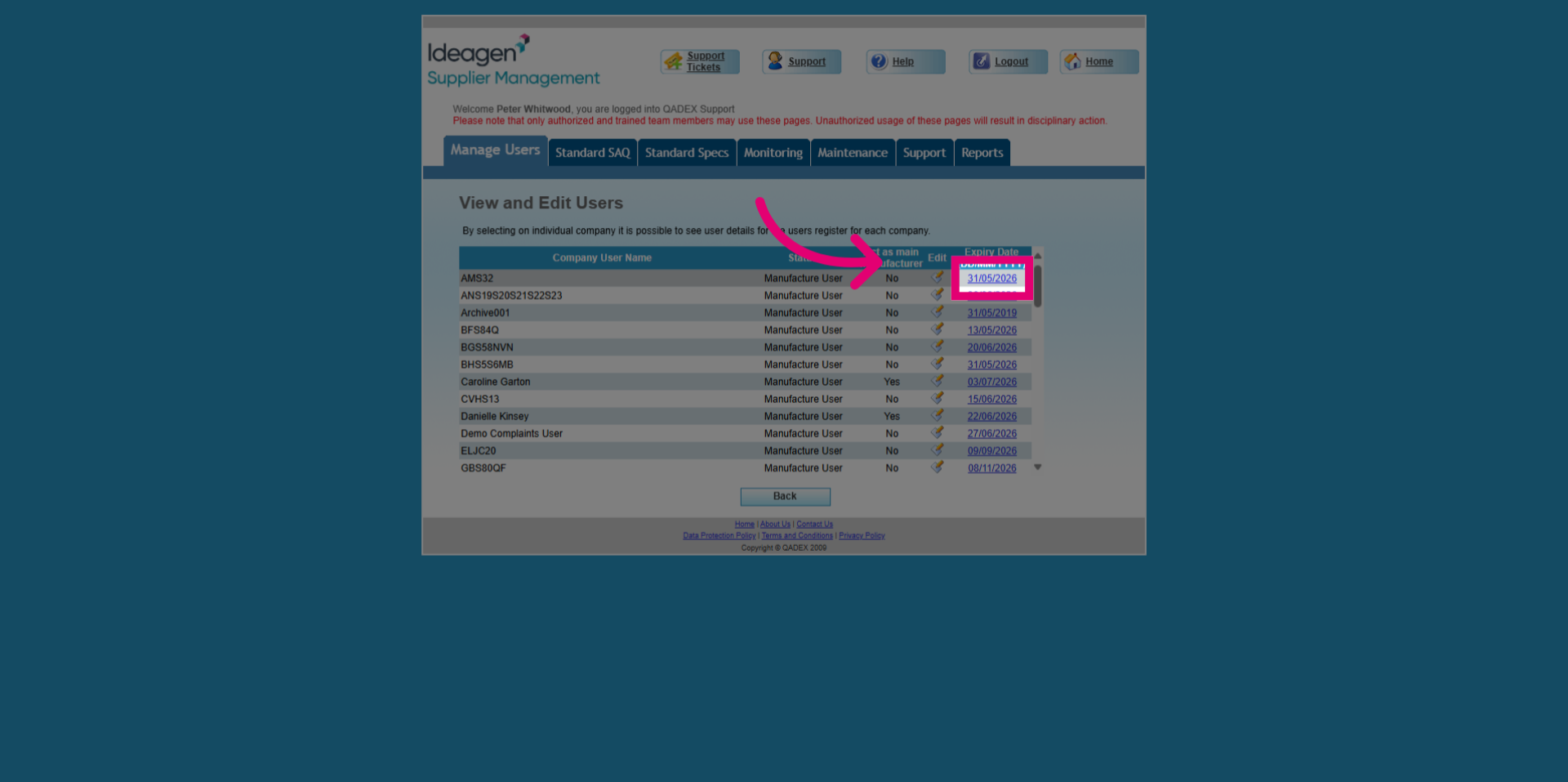
- Click the current expiration date field to modify it.
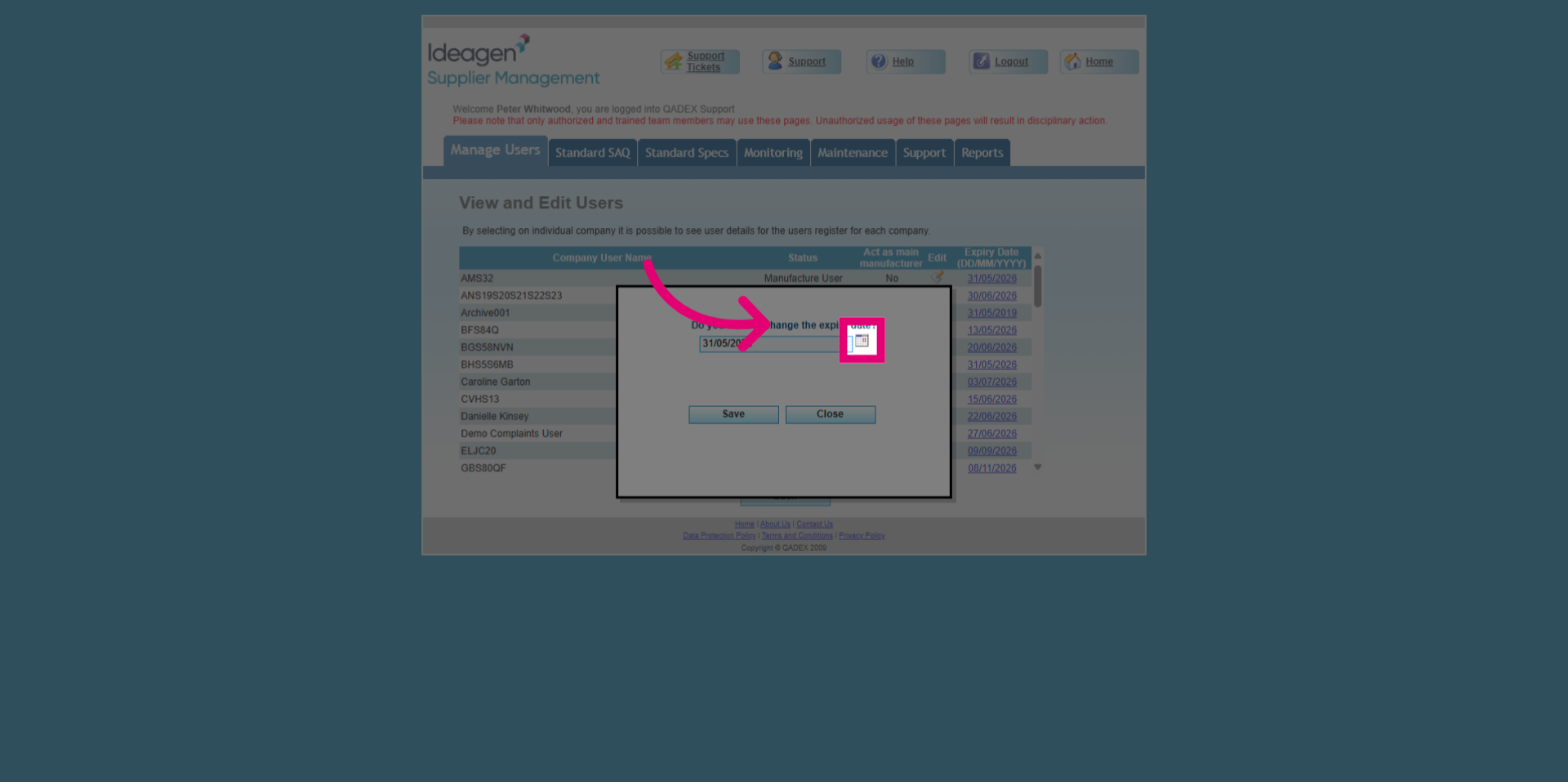
- Click the indicated spot to open the date selection interface.
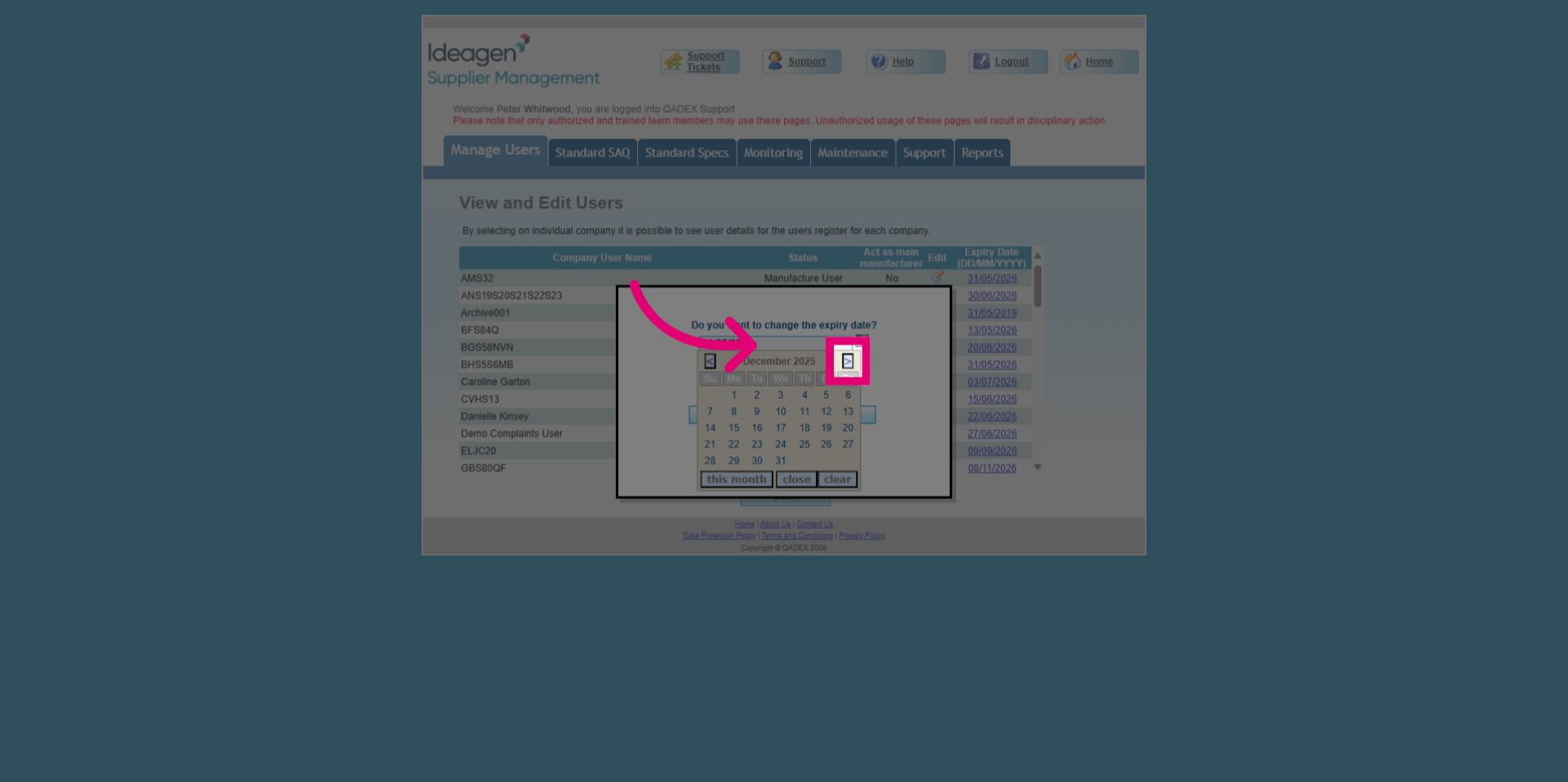
- Click the right arrow to navigate through the months.
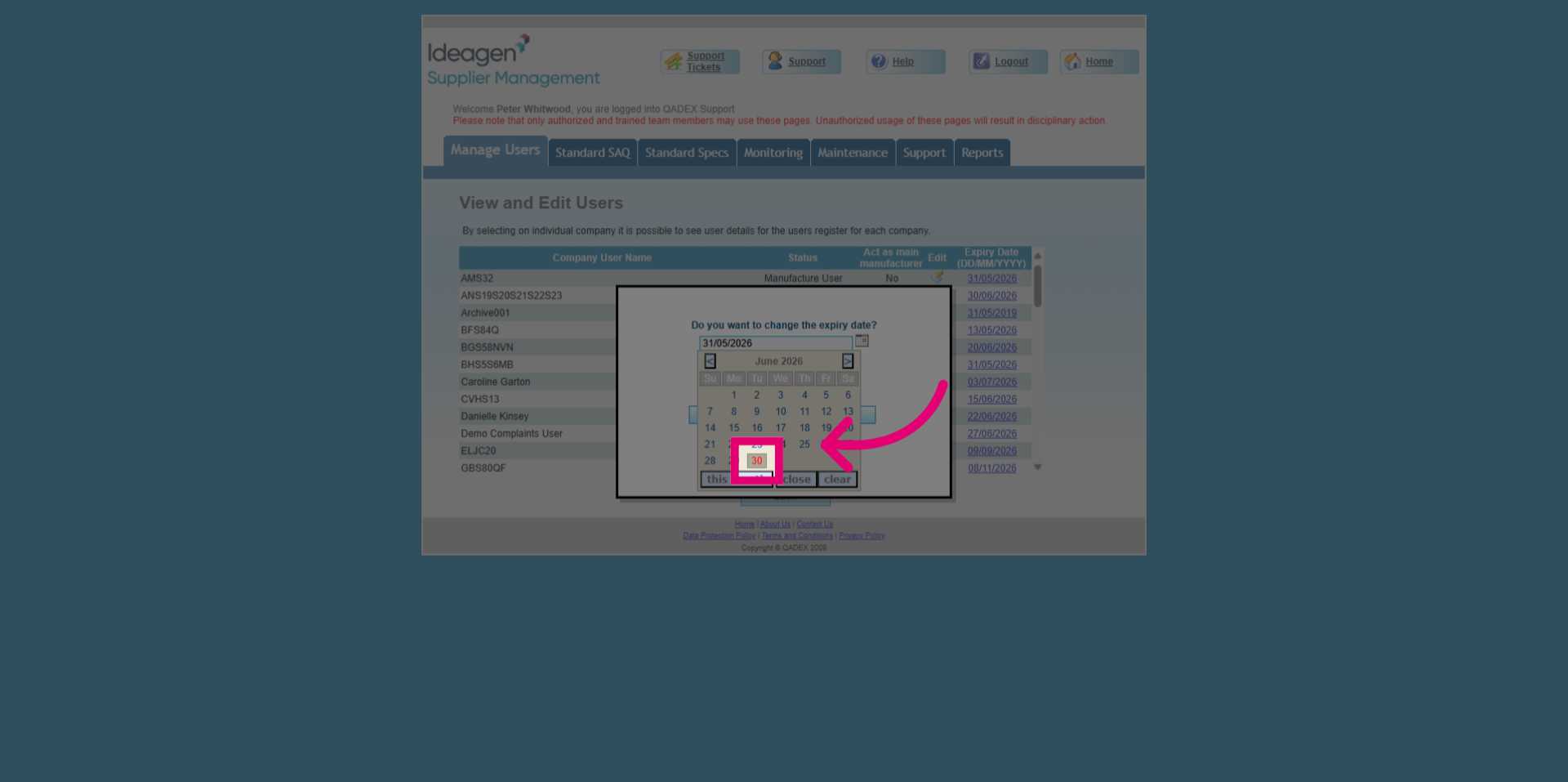
- Click to set the new expiration date.
- Click the Save button to apply the new expiration date to the user's profile.