New article
Recently updated
Using the copy function in Supply Chain Mapper

Who is this article for?
Supply Chain Mapper users who need to duplicate documents and specifications
No special access or permissions at required
This tutorial explains how to use the Copy Function in Supply Chain Mapper to duplicate documents accurately.
You will learn the sequential steps to manage and confirm copied information effectively.
1. Using the copy function
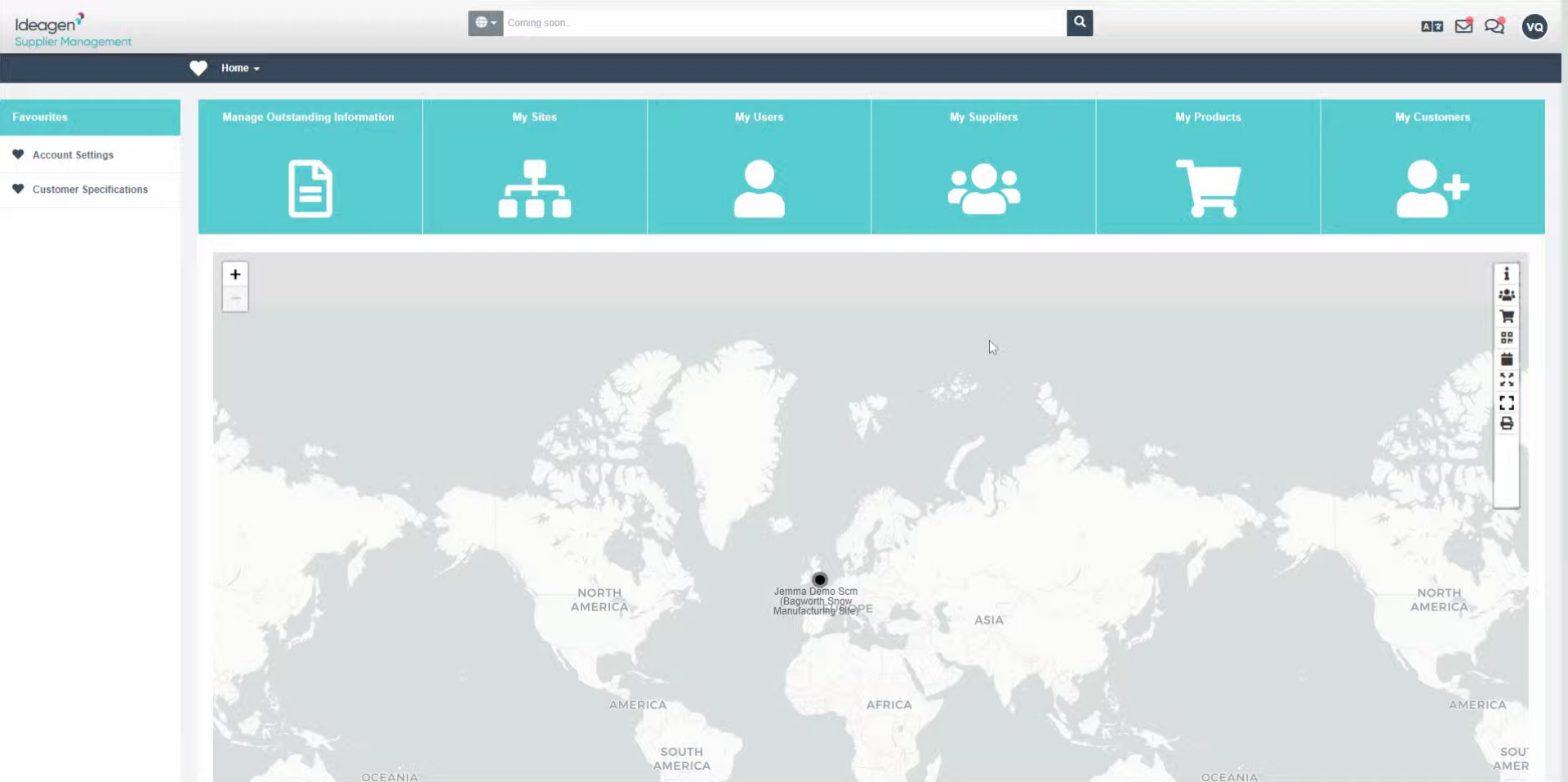
- Navigate to Supply Chain Mapper to begin the process.
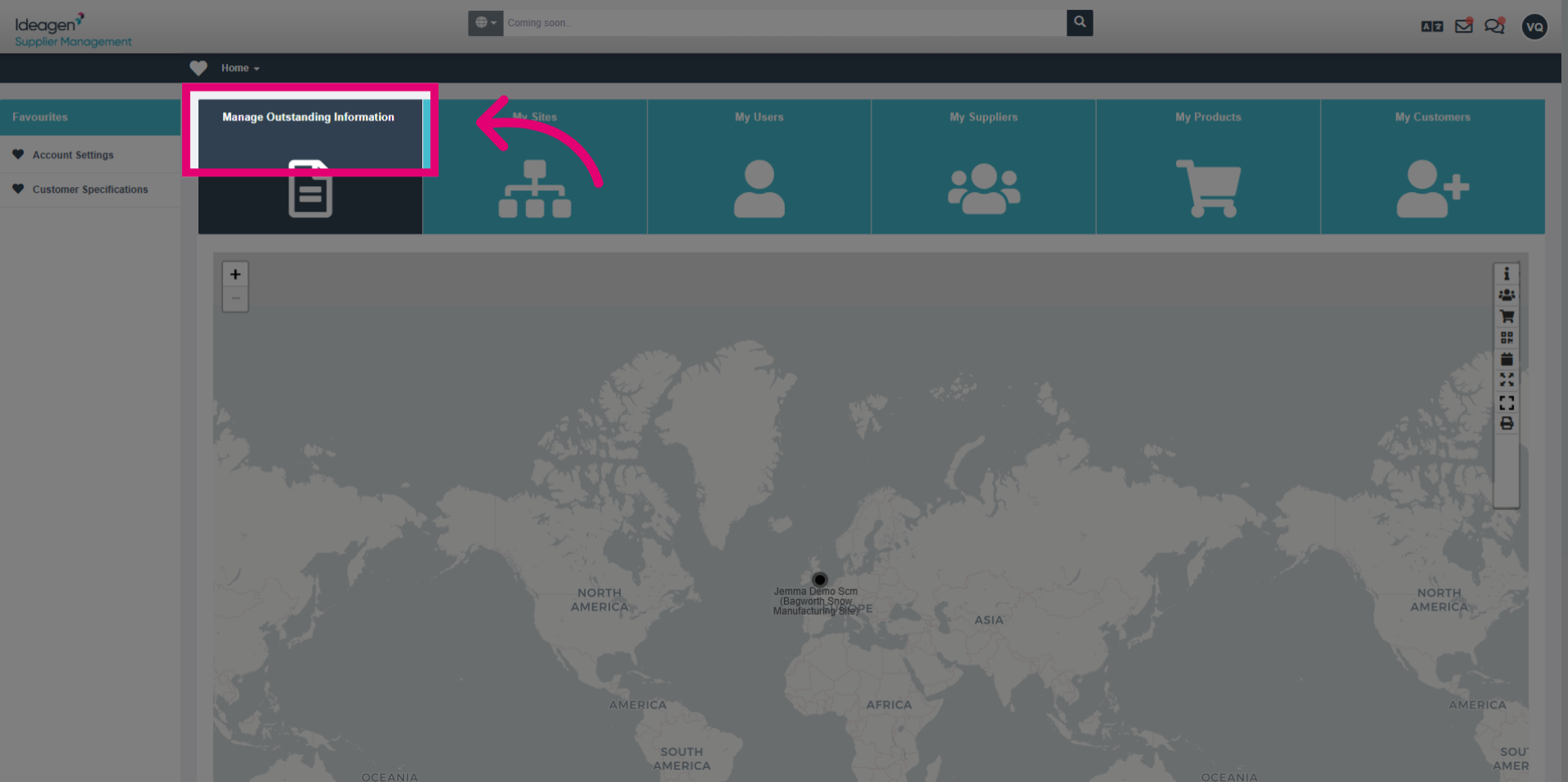
- Click the Manage Outstanding Information option to access pending documents that require action.
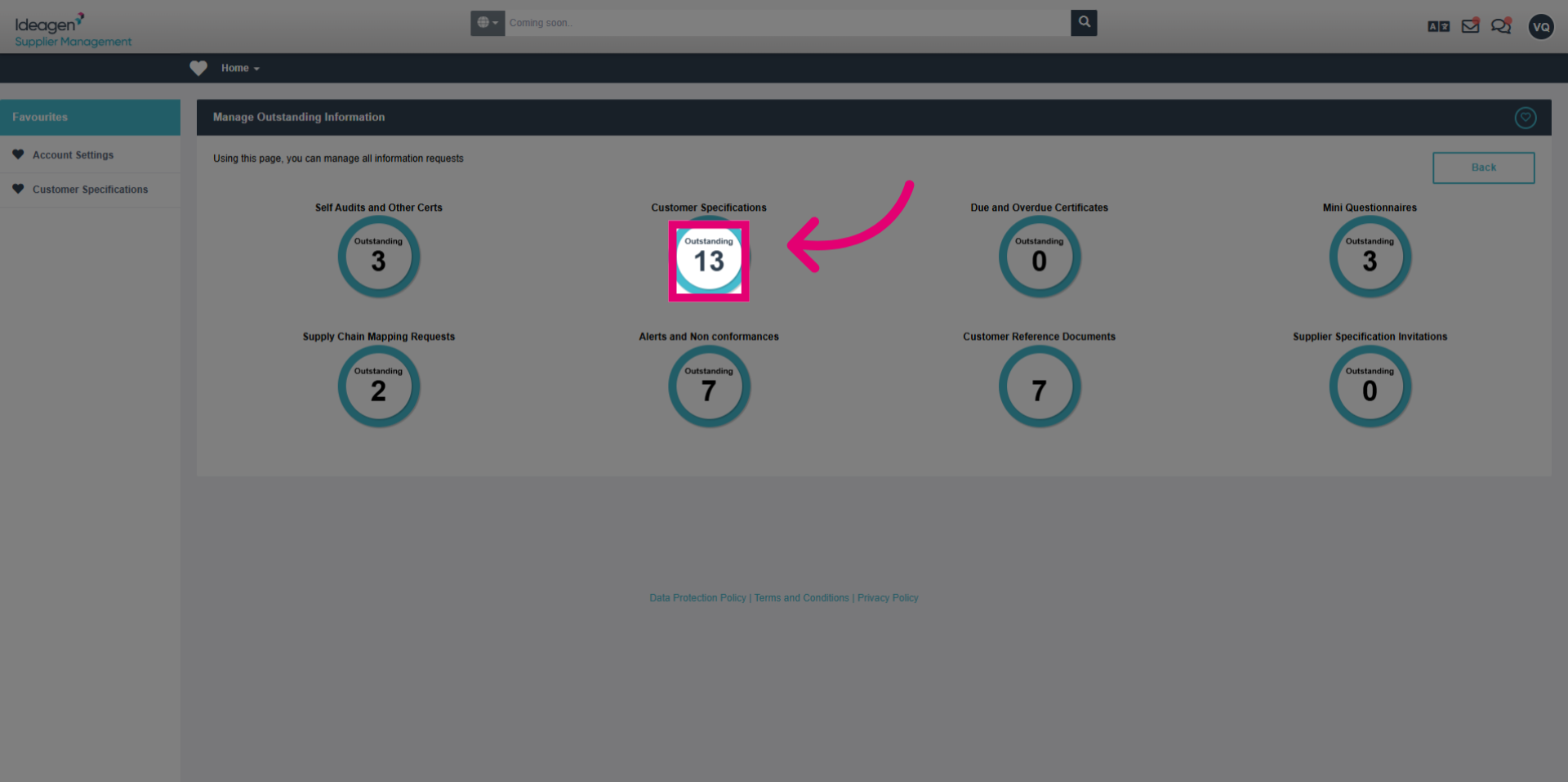
- Click the Customer specification button to open the specific outstanding information you want to copy.
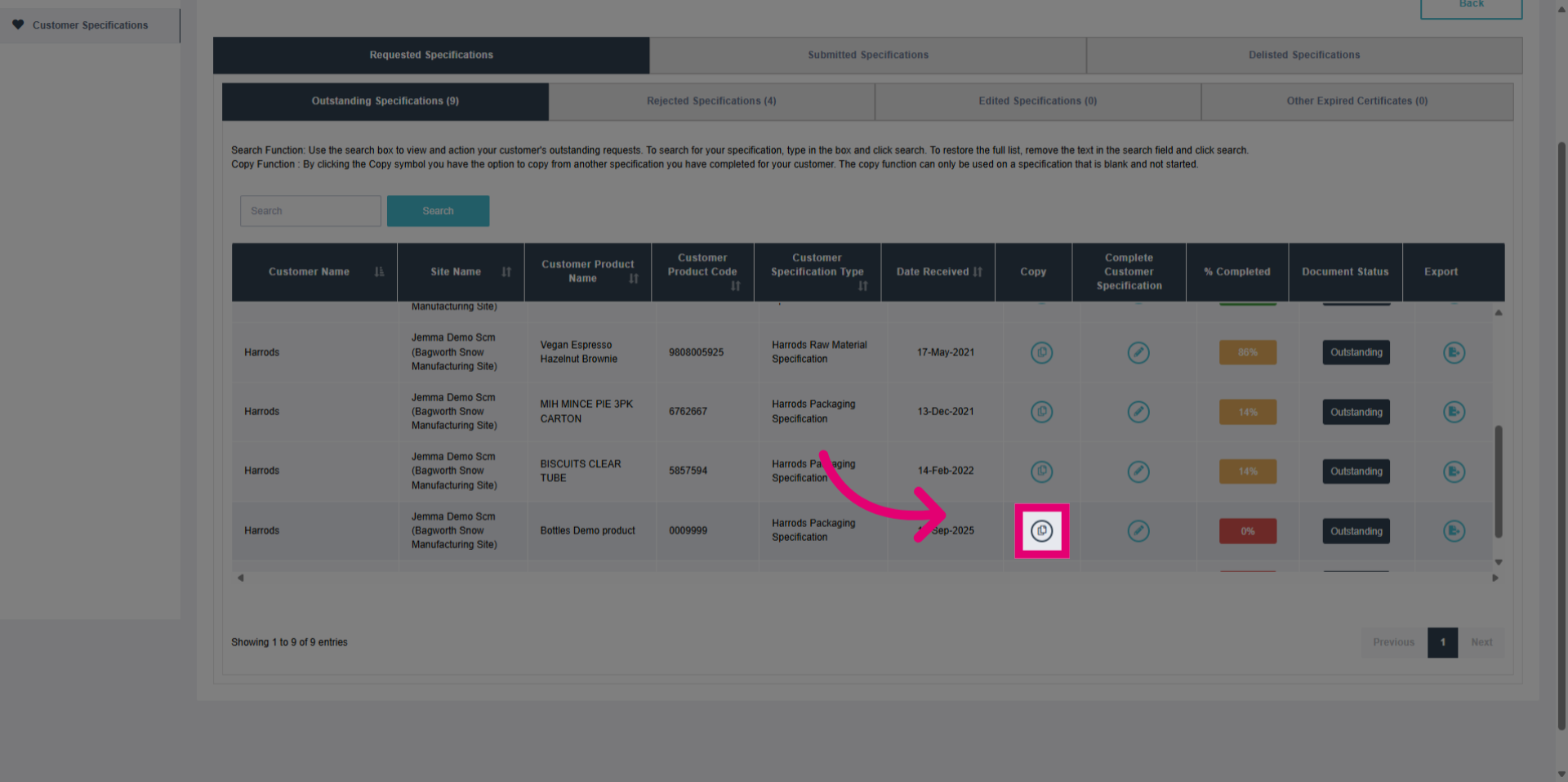
- Click copy to initiate the copy process for the selected document.
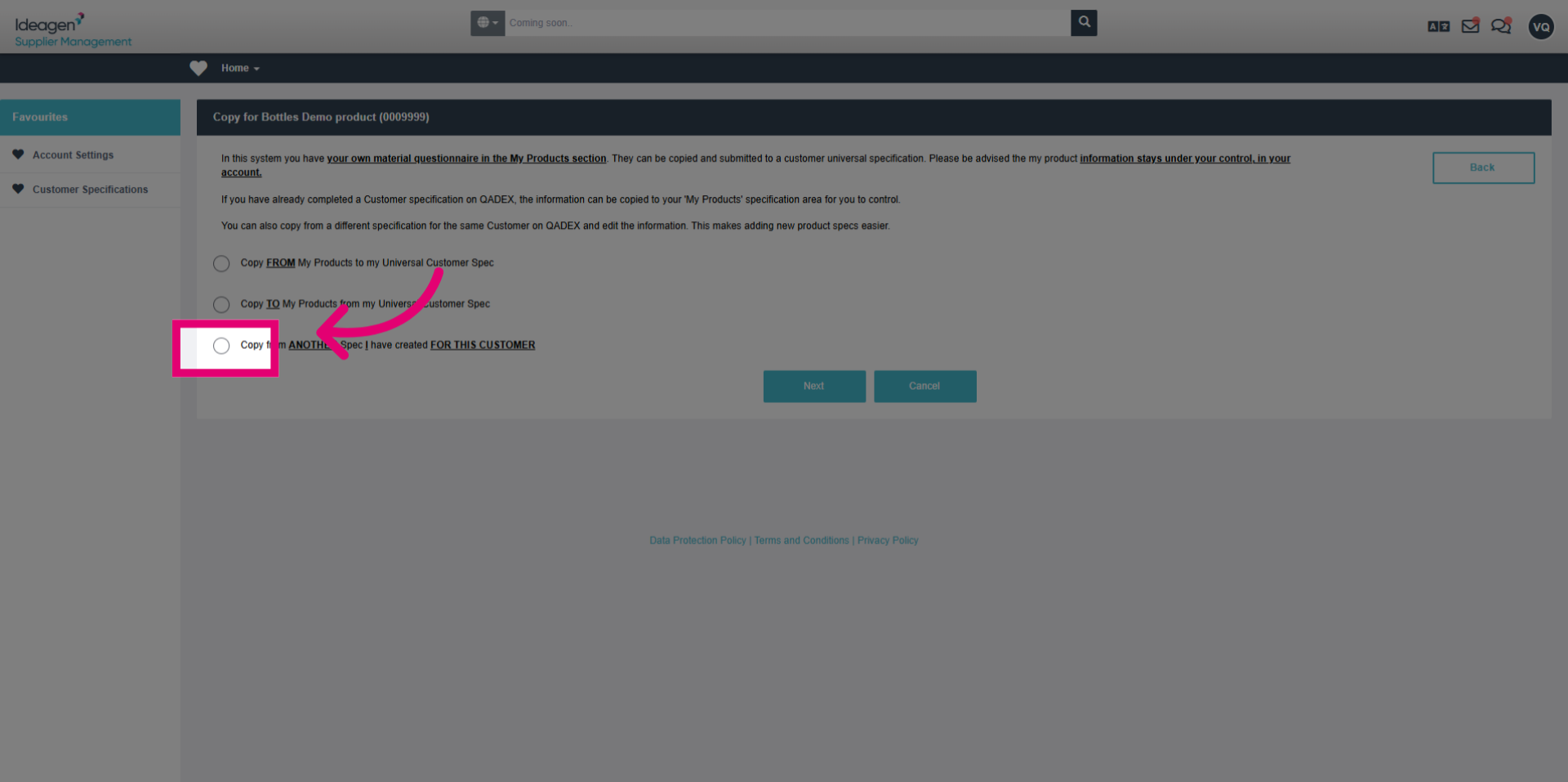
- Select Copy from ANOTHER Spec I have created FOR THIS CUSTOMER from the available options.
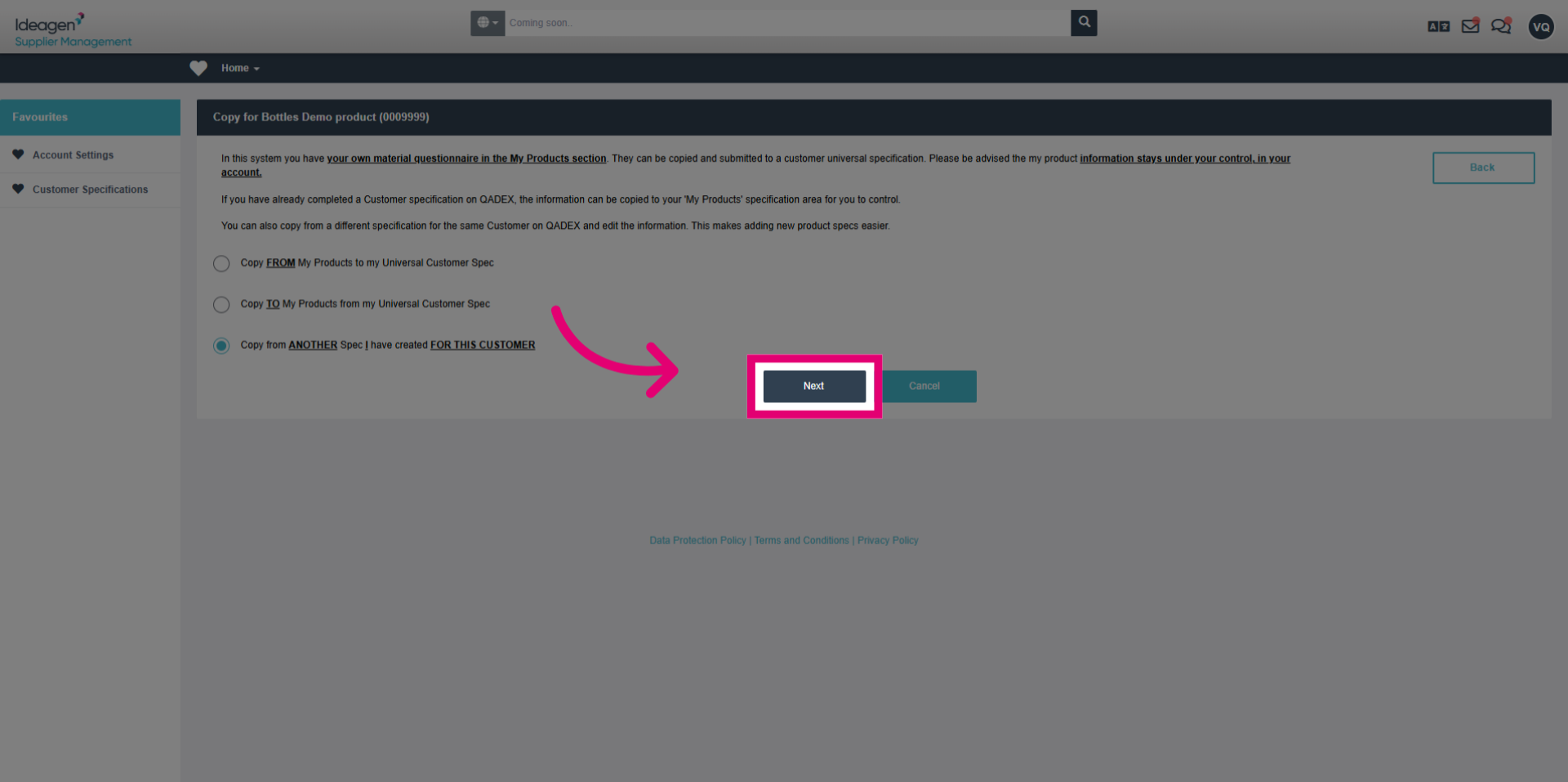
- Click the Next button to proceed to where you would like to copy from.
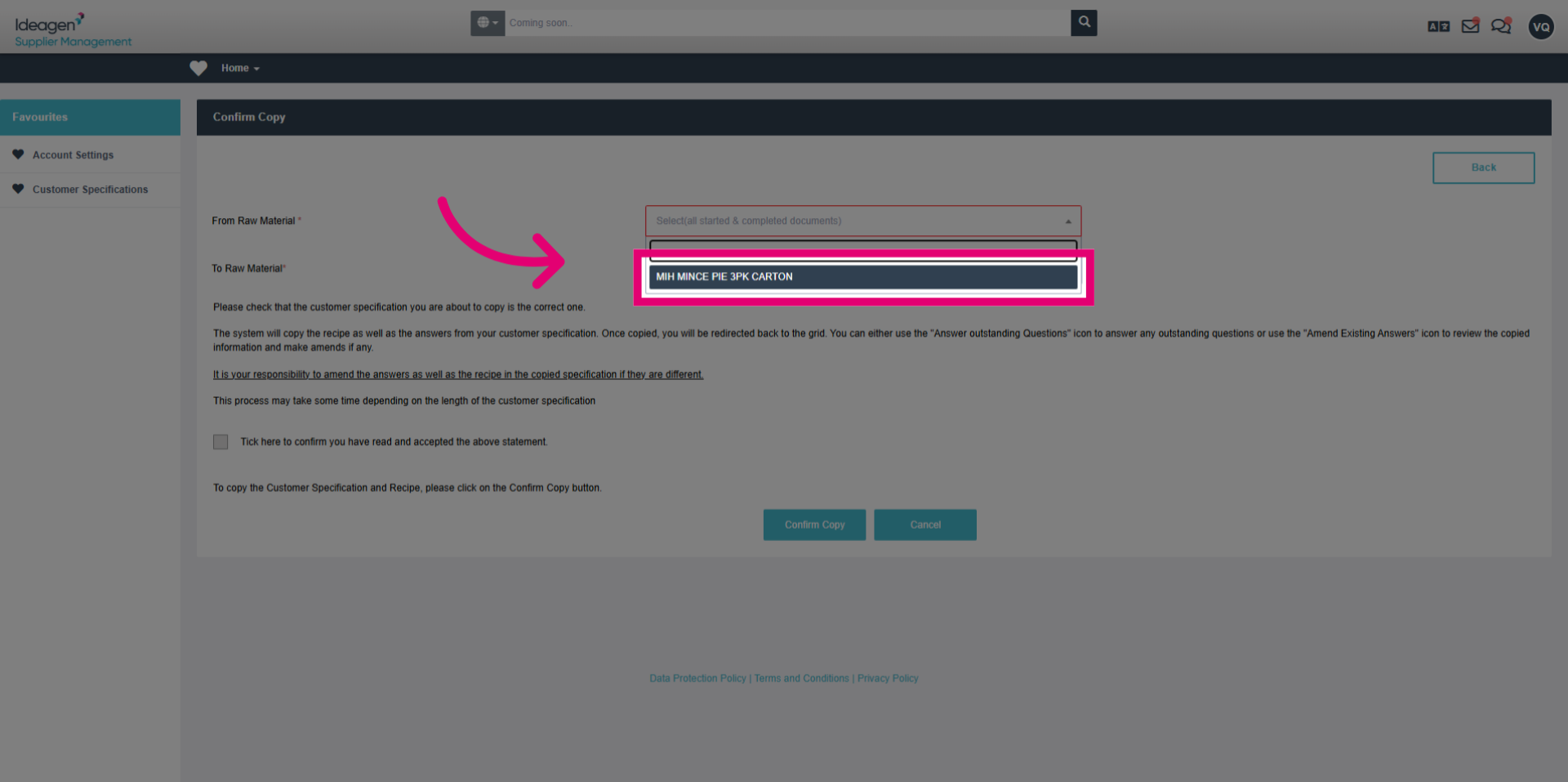
- Select the specific document to copy by clicking the relevant specification from the dropdown menu.
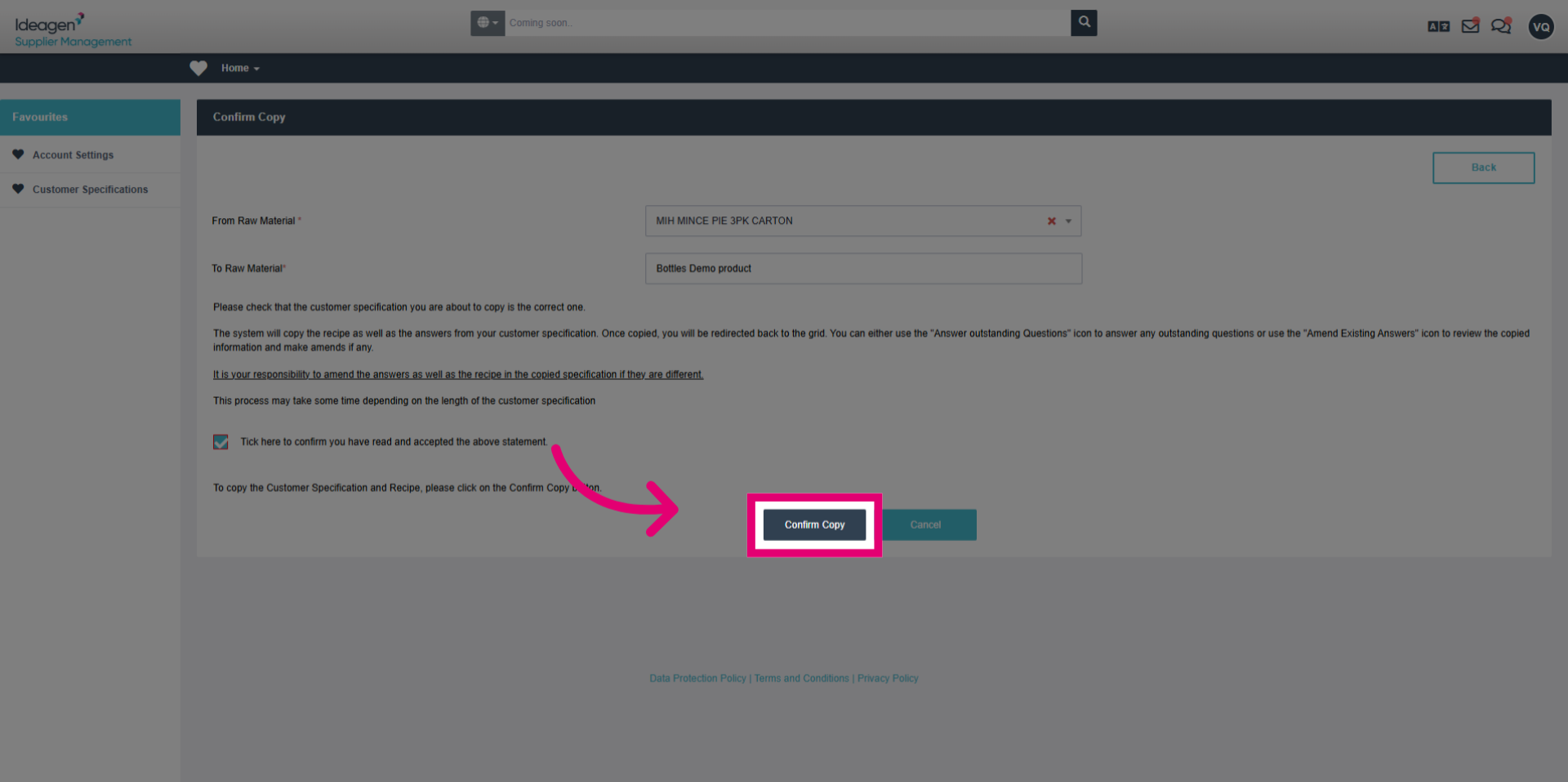
- Click the tick box to confirm you have read and accepted the above statement before proceeding.
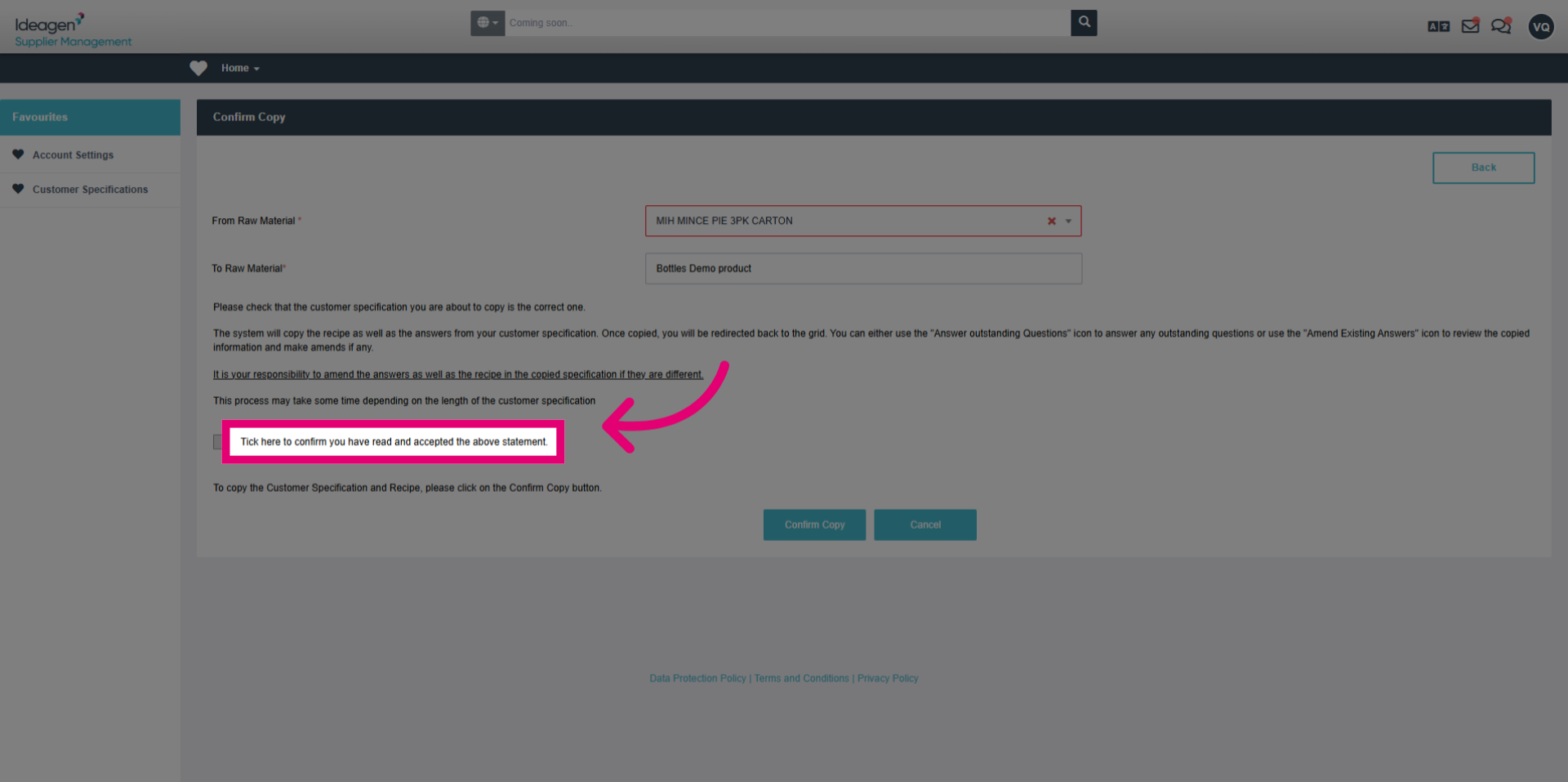
- Click the Confirm Copy button to finalize and execute the copying of the selected document.