New article
Recently updated
Clearing browser history, cookies and cache in chrome

This tutorial explains how to clear your browsing history, cookies, and cached data in Google Chrome
1. Introduction
Following these steps will help improve your browser's performance and protect your privacy.
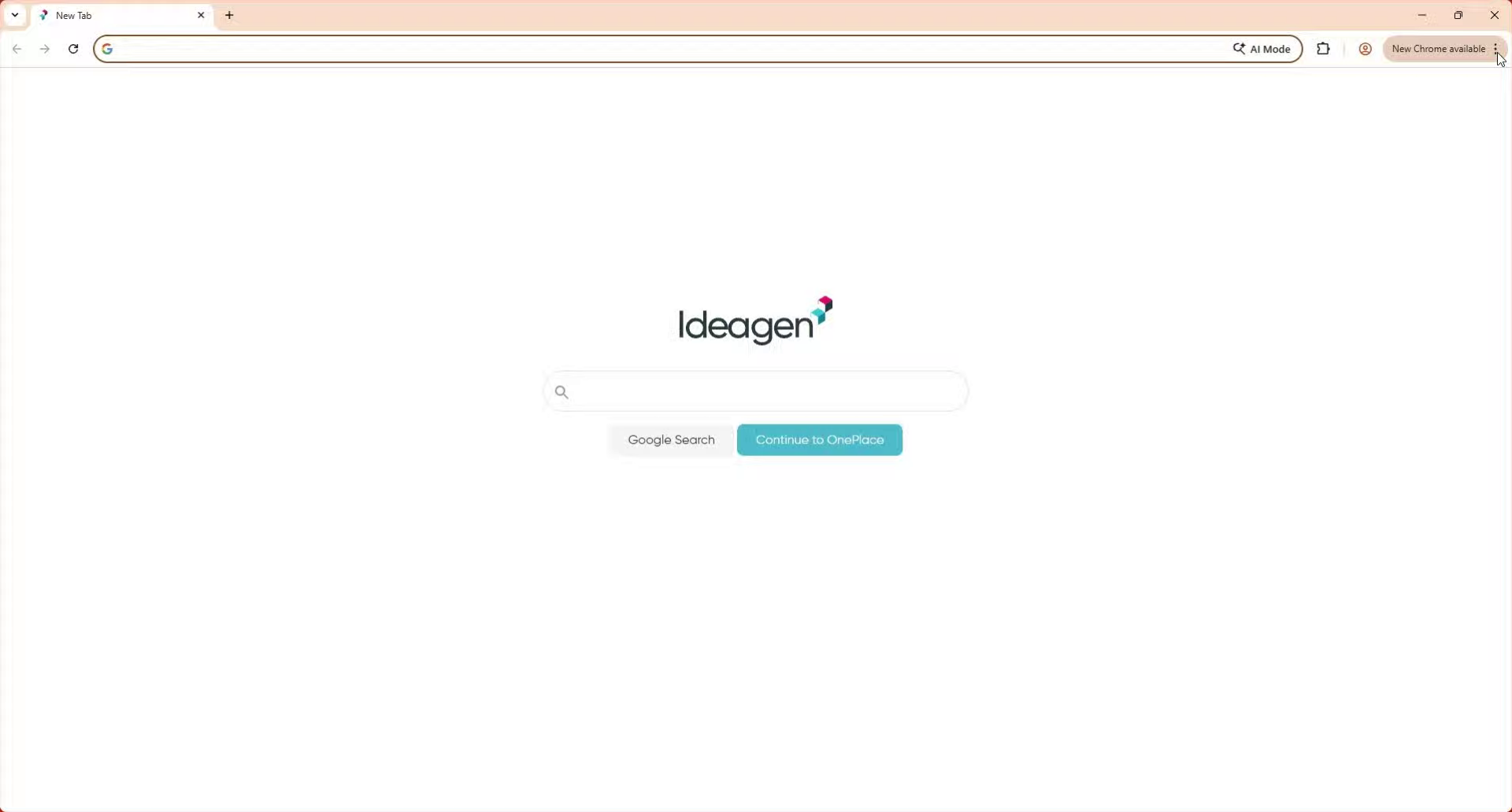
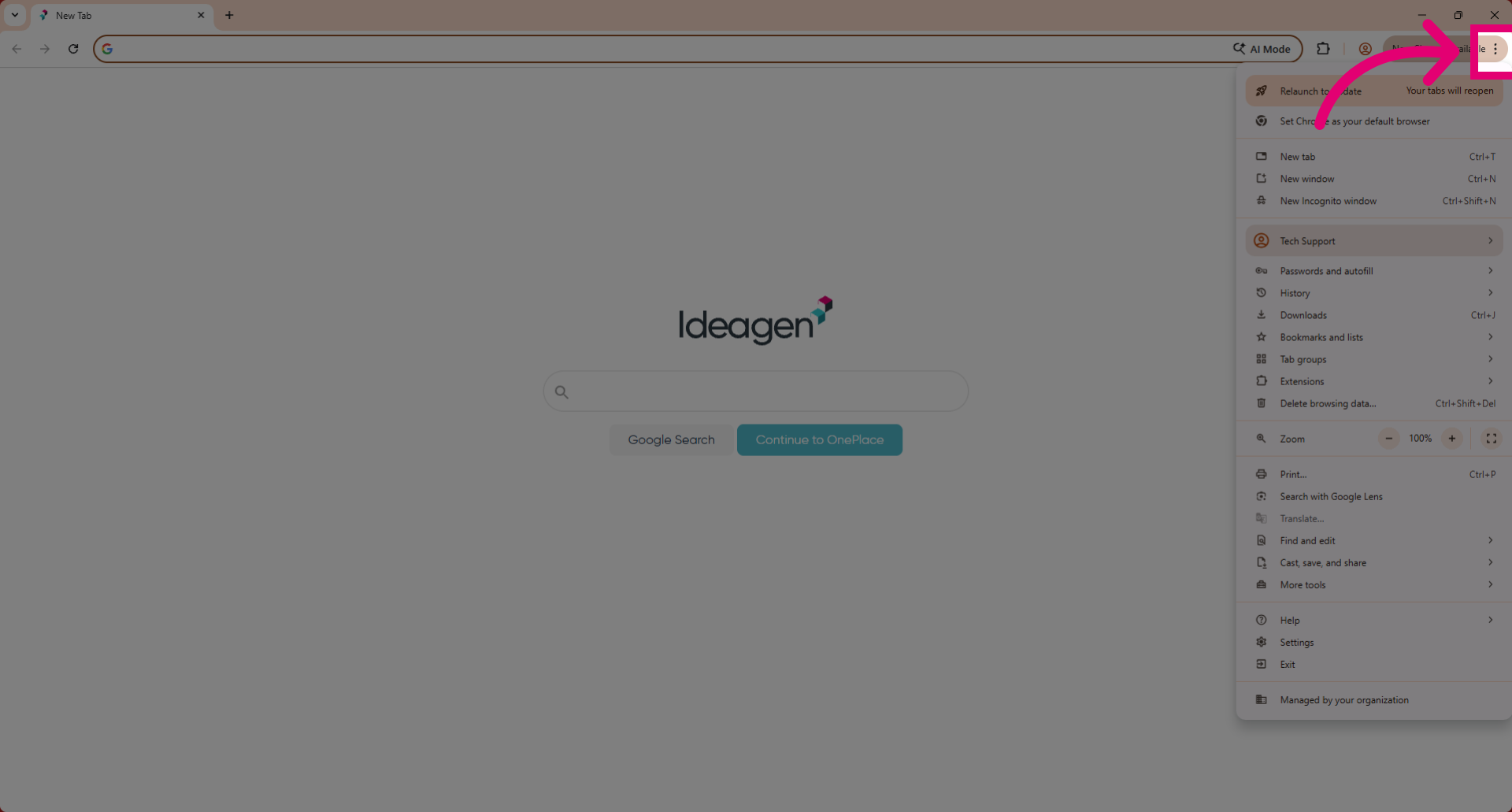
2. Open Chrome Update Notification
Click the three dots in the top right corner
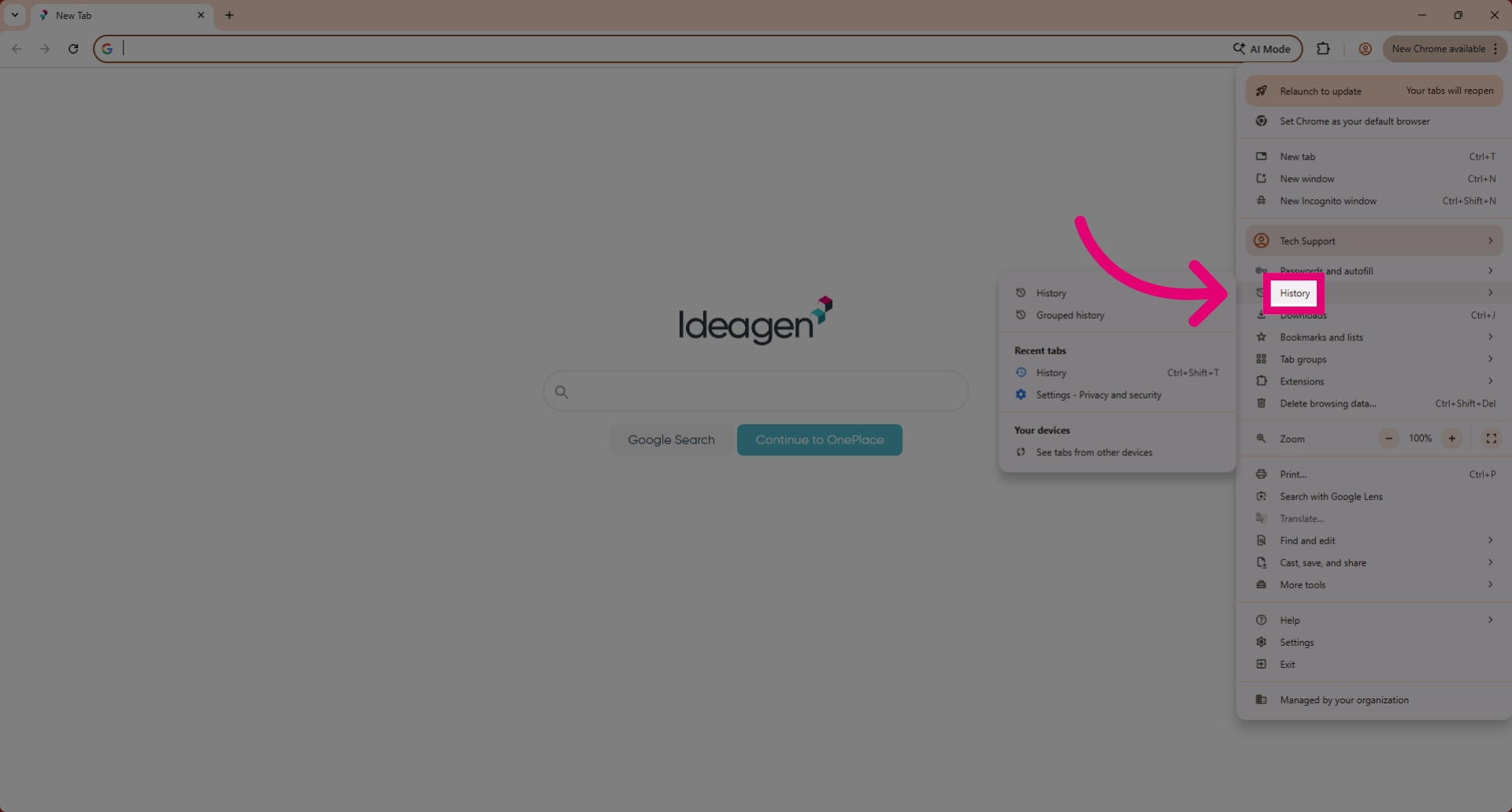
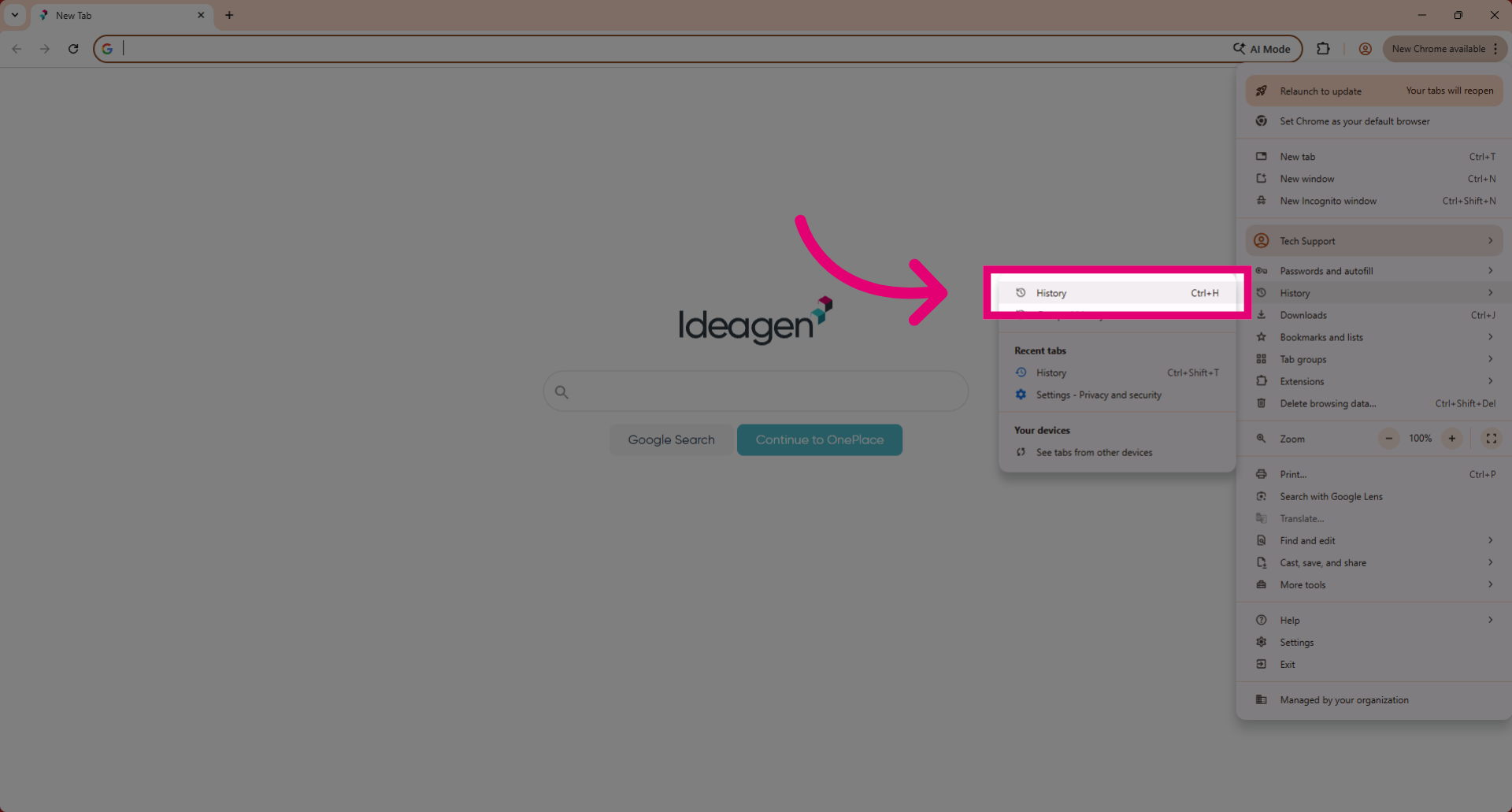
3. Access Chrome History Menu
Click History from the Chrome menu to view your browsing records.
4. Open History Shortcut
Click History or press Ctrl+H to open the full browsing history page.
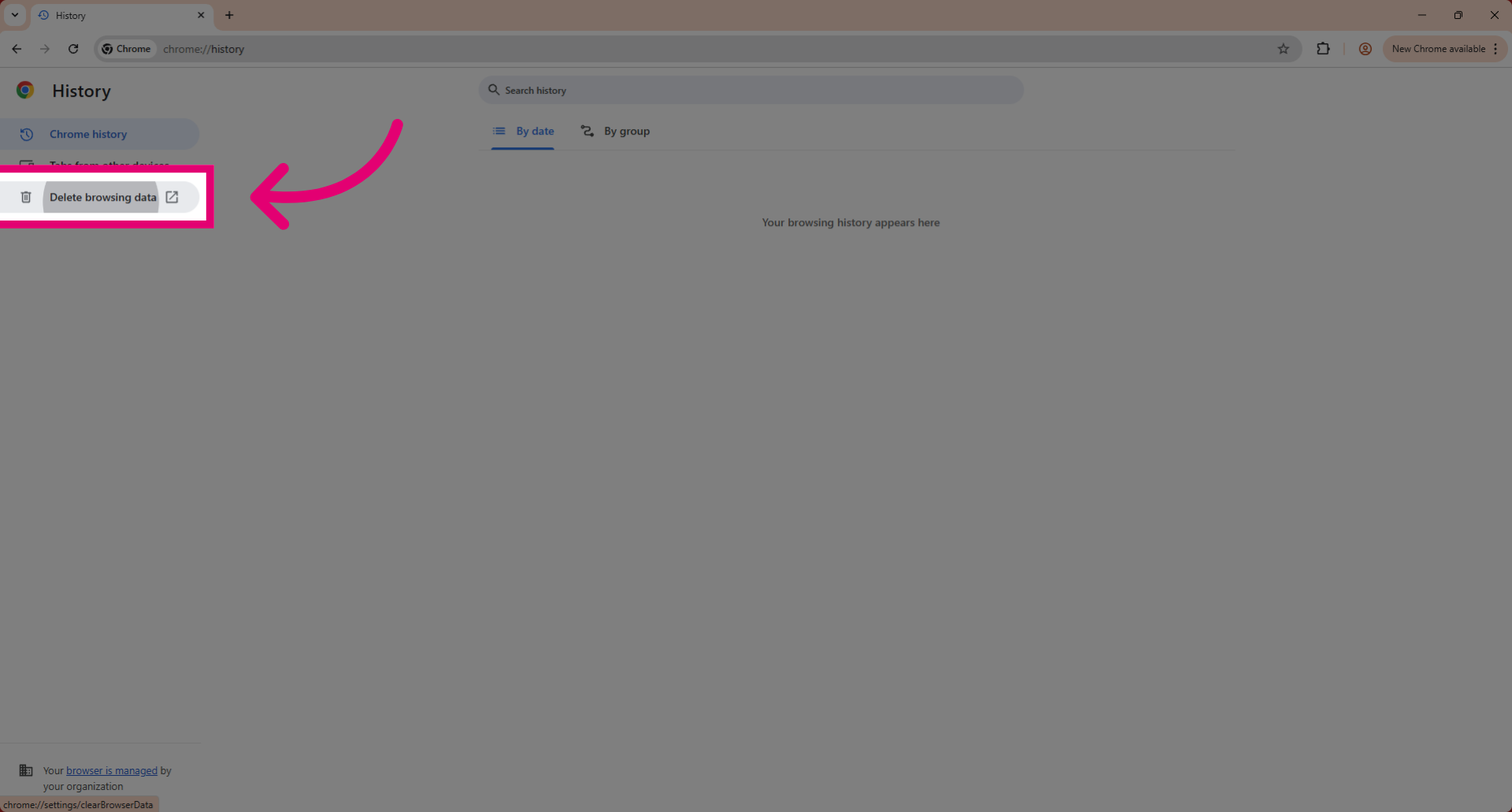
5. Select Delete Browsing Data
Click Delete browsing data to open the options for clearing your browsing information.
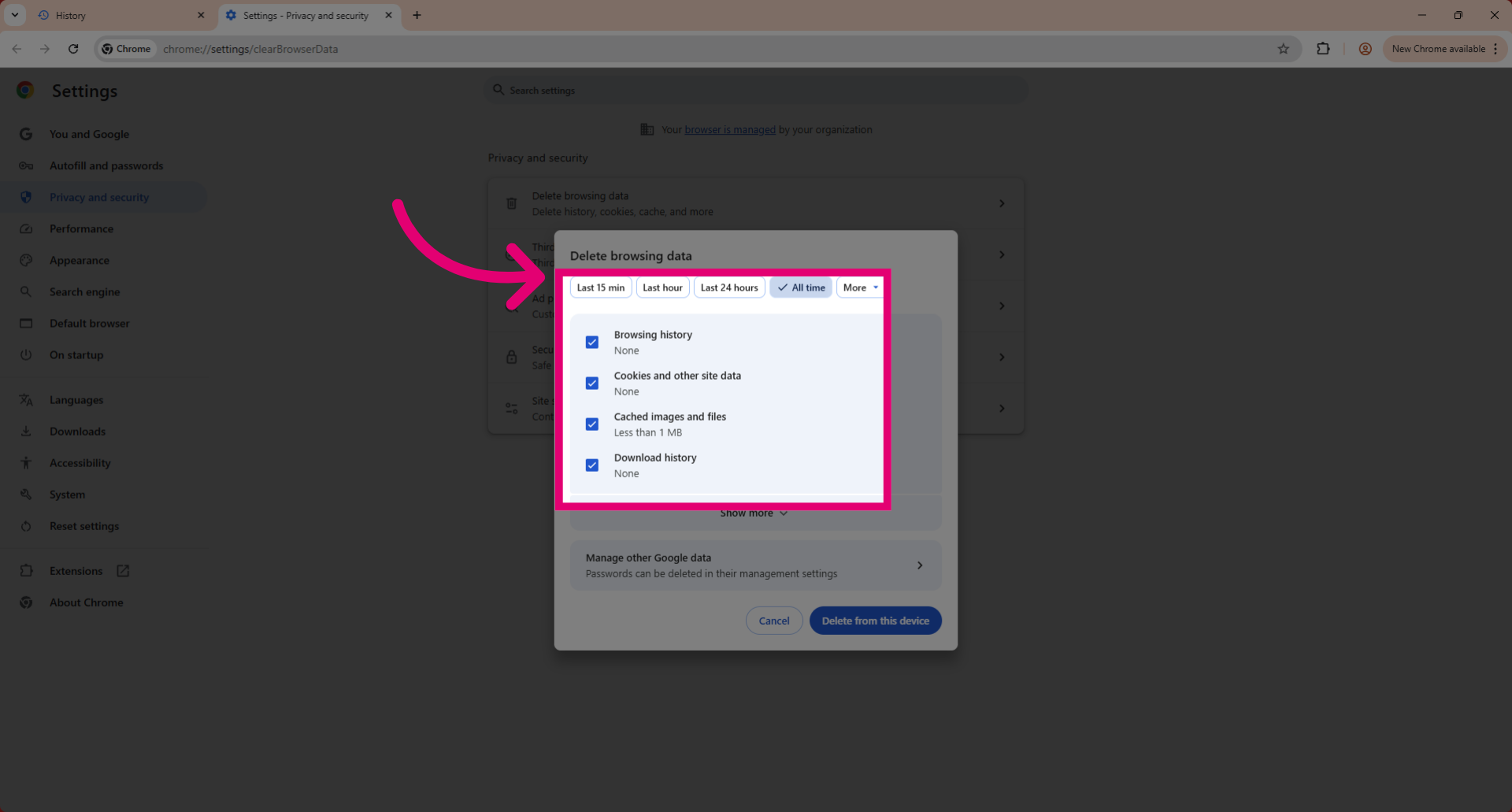
6. Choose Data To Delete
Click Delete browsing data and select the time range and types of data such as browsing history, cookies, and cached images to remove.
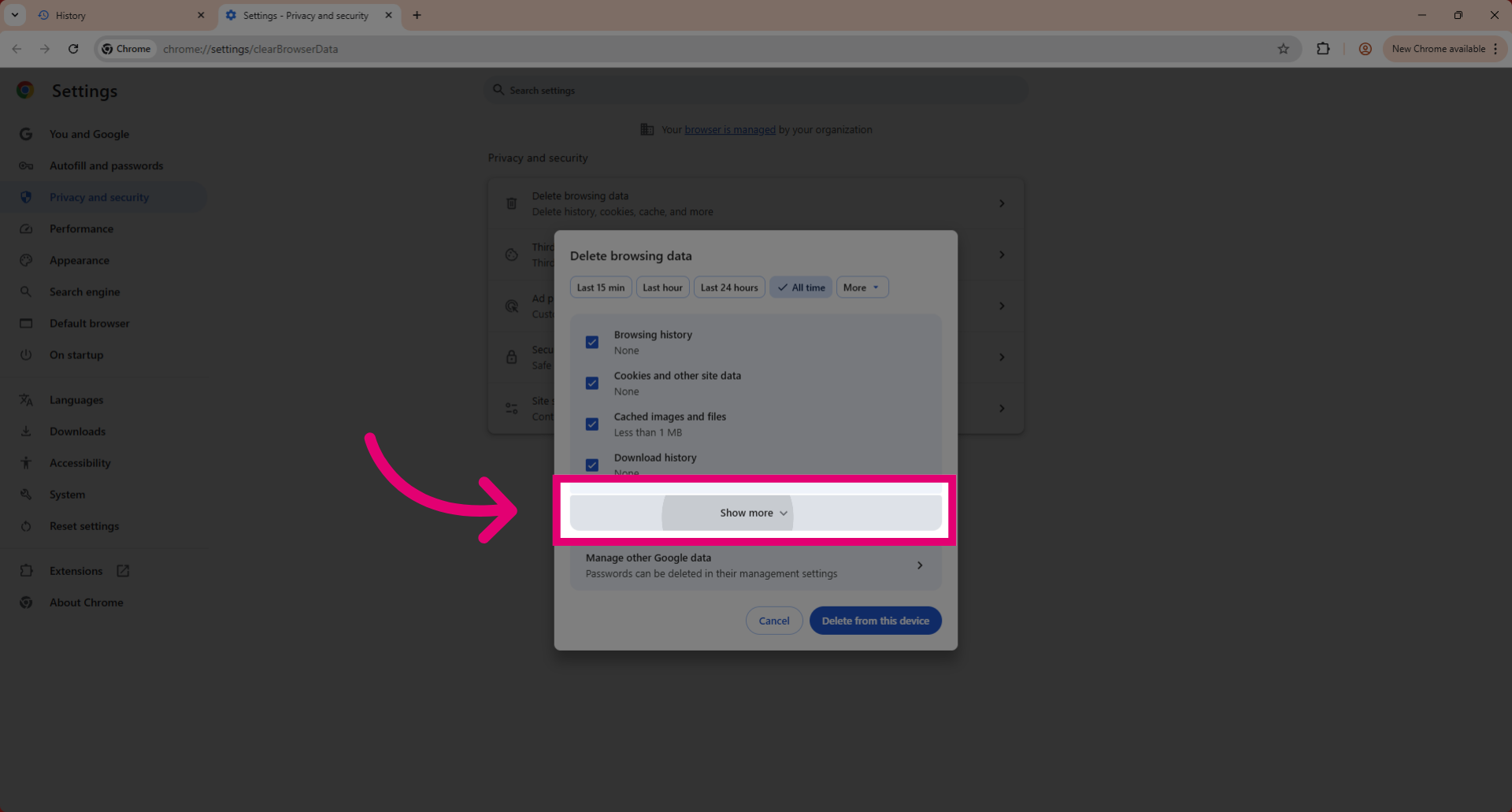
7. Expand Additional Options
Click Show more to reveal further data types you can clear from your browser.
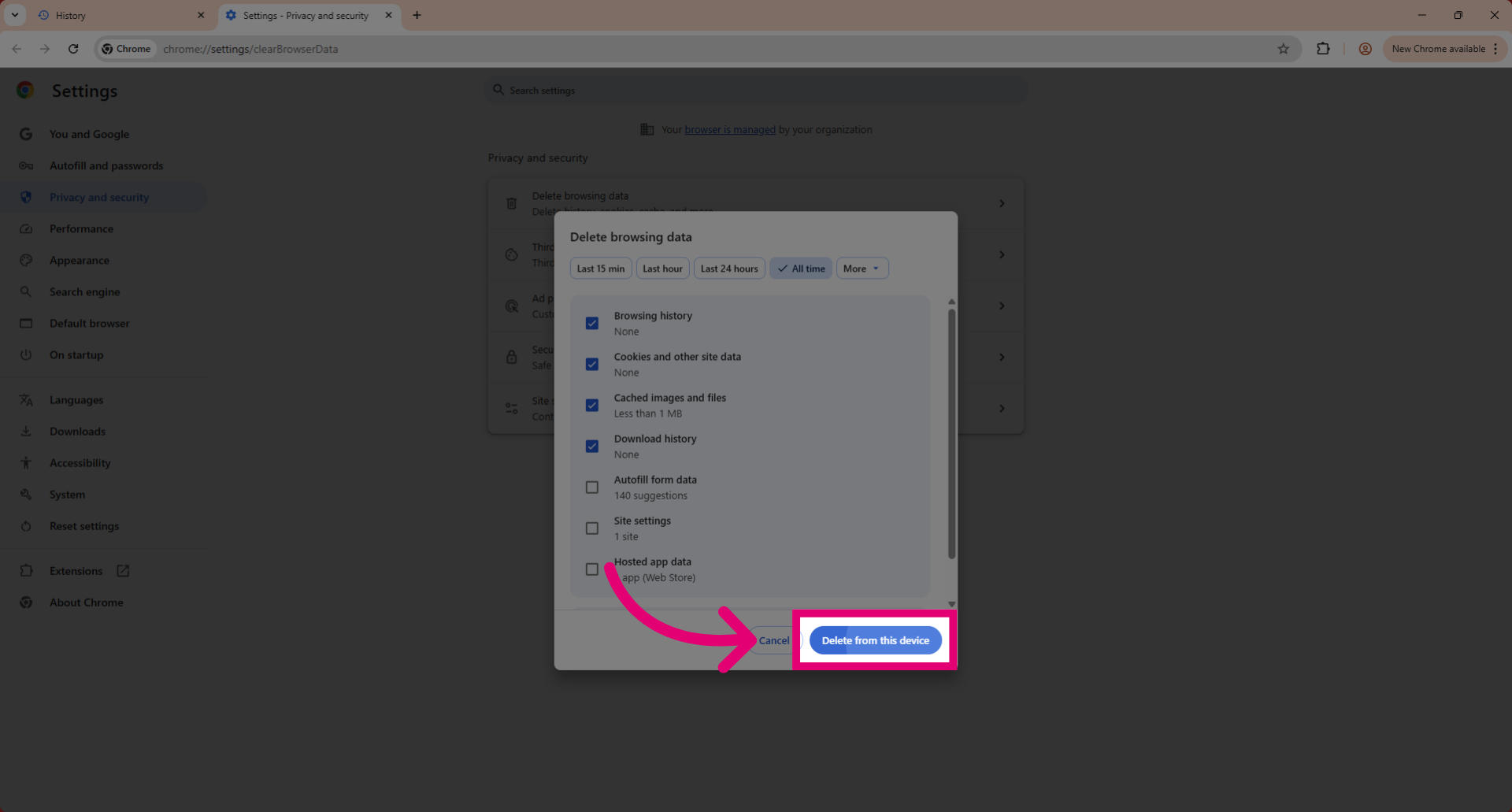
8. Confirm Data Deletion
Click Delete from this device to permanently remove the selected browsing data from your computer.