New article
Recently updated
Clear browser history, cookies and cache in Edge

This tutorial explains how to clear your browser history, cookies, and cache in Microsoft Edge
1. Introduction
Following these steps will help improve your browser's performance and protect your privacy.

2. Open Edge Settings Menu
Click the menu button in Microsoft Edge to access the settings options.

3. Select History Section
Click the History option to view your browsing data and related settings.

4. Open Delete Browsing Data
Click Delete browsing data to manage and remove stored information from your browser.

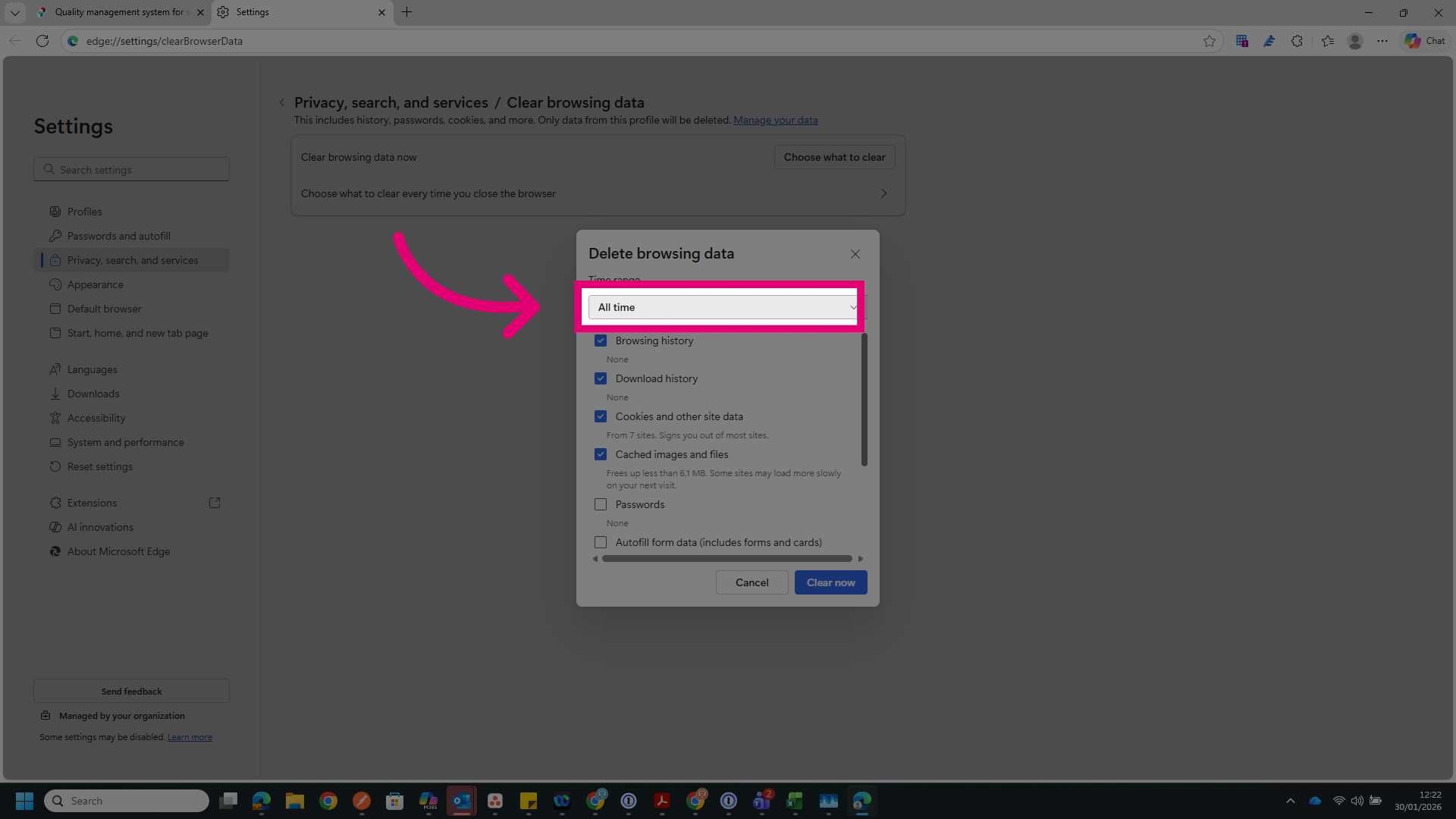
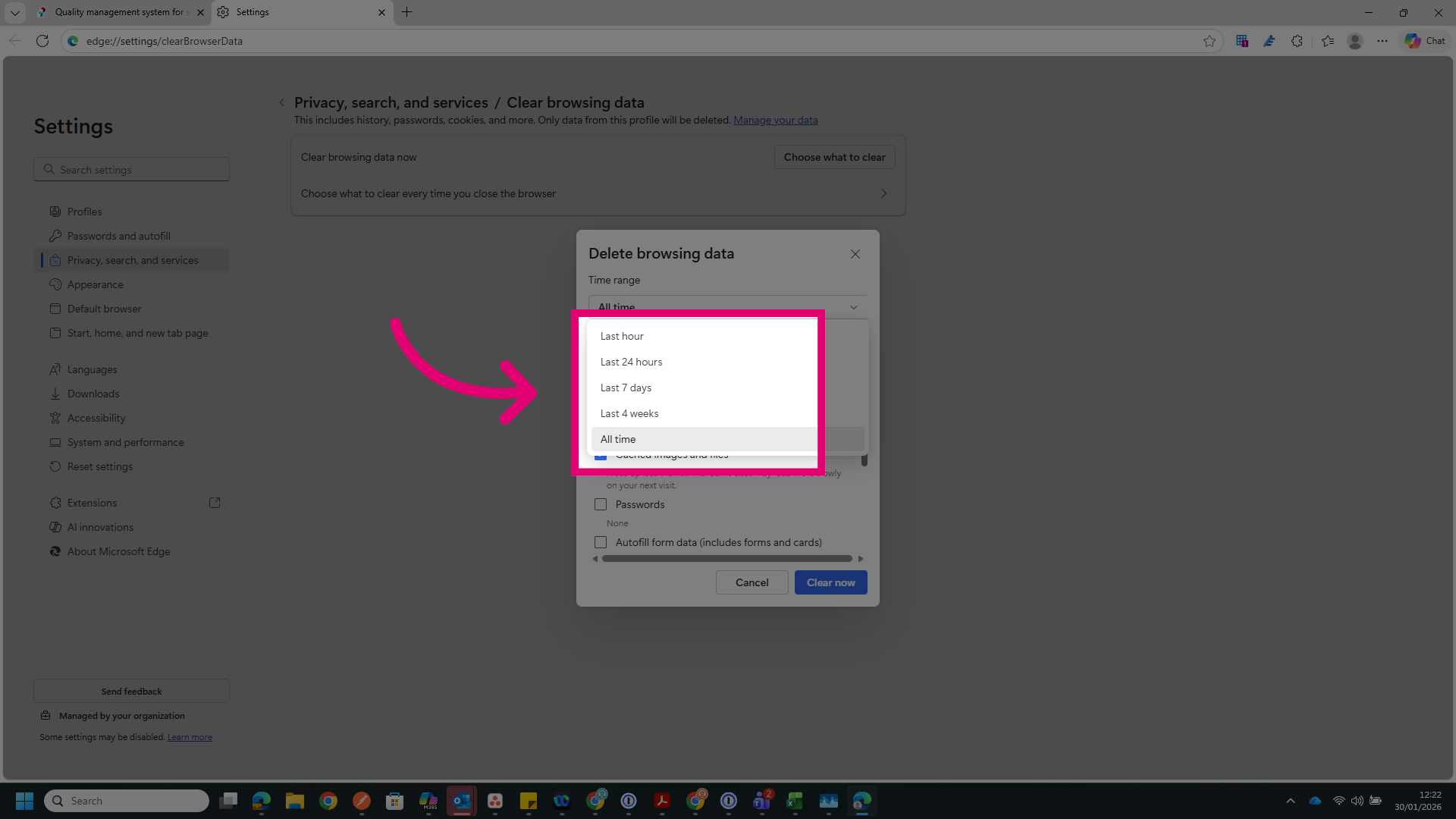
5. Choose Time Range
Click the time range dropdown and select All time to clear all stored browsing data.
6. Review Data To Be Cleared
Click the option indicating data from multiple sites will be cleared, which signs you out of most sites.
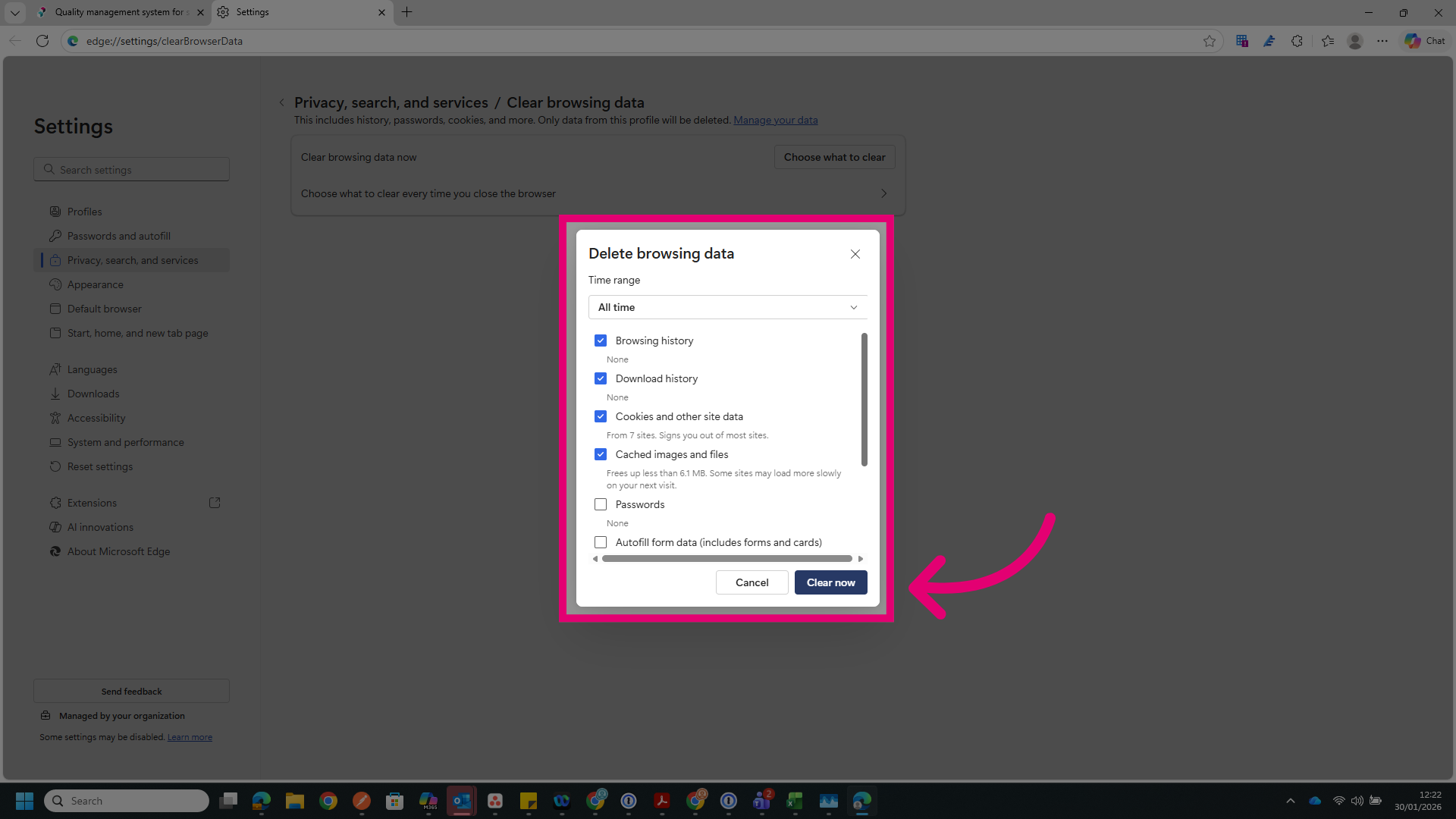
7. Confirm Clear Data
Click Clear now to delete your browsing history, cookies, and cache from Microsoft Edge.